

LM Studio: Run AI Locally (Beginner → Power User Guide)

- 1) The basics (what AI is in plain language)
- 2) Download + install LM Studio (step-by-step)
- 3) Quick start (first model + first prompts)
- 4) Download your first model (what to choose)
- 5) Best settings (low-end vs high-end)
- 6) Developer tab: run a local API server (localhost)
- 7) Serve on your local network (LAN)
- 8) Real ways to use LM Studio
- 9) Troubleshooting
- Suggested images & videos
- Sources
1) The basics (what AI is in plain language)
An “AI model” (LLM) is like a text engine trained on huge amounts of writing. It predicts the next bits of text, and that turns into answers, plans, code, and stories. LM Studio is the desktop app that helps you download and run models on your own computer.
Three beginner terms that matter
- Tokens: chunks of text. More tokens = more memory and slower responses.
- Context length: how much the model can “remember” at once (chat + pasted text).
- Quantization (Q4/Q5/Q8): smaller/faster model files with a quality trade-off.
2) Download + install LM Studio (step-by-step)
LM Studio is available for Windows, macOS, and Linux. Use the official download page below, then follow the steps for your operating system.
Official download
Install steps
- Windows: download the installer → run it → open LM Studio from Start Menu.
- macOS: download the DMG → drag LM Studio to Applications → open it (allow “Open” if macOS warns you).
- Linux: download the AppImage → make it executable → run it:
chmod +x LM_Studio*.AppImage
./LM_Studio*.AppImage
3) Quick start (first model + first prompts)
- Open Discover.
- Search for an Instruct model (general chat) and click Download.
- Go to Chat → load the model.
- Try the prompts below so you know it’s working.
Three test prompts (copy/paste)
1) Explain tokens + context length like I'm 12.
2) Summarise this paragraph in 5 bullets: [paste any paragraph]
3) Give me a step-by-step checklist to do X, then ask me 2 questions.
4) Download your first model (what to choose)
Choose models by job and hardware. In LM Studio you’ll typically see: Instruct (general assistant), Coder (programming), and sometimes Vision (images).
Beginner picks (by hardware)
- Older PC / CPU-only: 3B–7B Instruct in Q4.
- Mid-range (16–32GB RAM, modest GPU): 7B–14B in Q4/Q5.
- High-end GPU: 14B–34B+ models, higher quant, larger context.
5) Best settings (low-end vs high-end)
Most “why is this slow?” problems come down to 2 things: model size and context length. Use these as your starting defaults.
| Setting | Low-end / laptop | High-end / GPU box |
|---|---|---|
| Quant | Q4 (fast + fits memory) | Q5/Q8 (better quality) |
| Context length | 4k–8k (stable) | 8k–32k+ (if you have RAM/VRAM) |
| Temperature | 0.2–0.6 (more precise) | 0.7–1.0 (more creative) |
| GPU offload | Some offload if VRAM is limited | Max offload (fastest) |
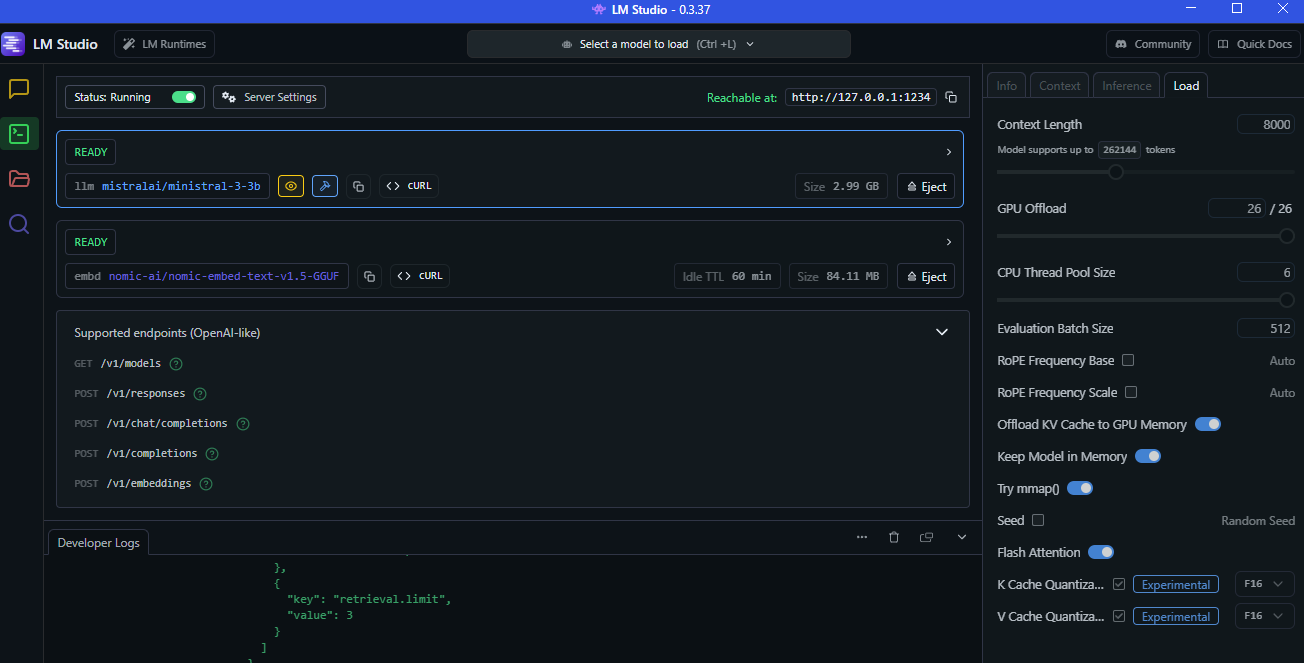
6) Developer tab: run a local API server (localhost)
LM Studio can expose an OpenAI-compatible API so your apps/bots can talk to your local model.
The base URL is usually:
http://localhost:1234/v1
- Load a model in LM Studio.
- Open Developer → start the server.
- Copy the base URL.
- Test it quickly:
curl http://localhost:1234/v1/modelsAdvanced: minimal Python client (OpenAI-compatible)
from openai import OpenAI

client = OpenAI(base_url="http://localhost:1234/v1", api_key="not-needed")

resp = client.chat.completions.create(
  model="YOUR_MODEL_ID",
  messages=[{"role":"user","content":"Explain LM Studio in 2 sentences."}],
  temperature=0.4
)

print(resp.choices[0].message.content)
7) Serve on your local network (LAN)
Want your phone/laptop to use your main PC as the AI server?
In Server Settings, enable Serve on Local Network, then use:
http://YOUR_LAN_IP:1234/v1
8) Real ways to use LM Studio
Project A — Local “ChatGPT-style” assistant
Prompt template:
Goal: (1 sentence)
Context: (2–6 bullets)
Constraints: (bullets)
Output: (exact format)
Ask me 2 questions if anything is missing.
Project B — Coding assistant (reliable edits)
You are my coding assistant.
- Ask clarifying questions if requirements are missing.
- Make the smallest change first.
- Output a unified diff only.
- After the diff: explain how to test and how to roll back.
Project C — Creative writing
Write in: punchy cinematic voice, short paragraphs, strong imagery.
Length: 600–900 words.
Structure: hook → escalation → cliffhanger.
Project D — Documents
Do this:
1) Summarise in 8 bullets
2) Extract action items + dates
3) List risks/unknowns
4) Executive brief in 120 words
Project E — Tools + browser-like research (agent style)
- User asks a question
- Model requests a tool action (search/open/screenshot)
- Your tool runs and returns results
- Model answers using those results
Project F — Minecraft + Discord (bridge app)
Ai Chat Bot In Minecraft (LM Studio + Minecraft → LM Studio Python bridge)
9) Troubleshooting
- Model won’t load / out of memory: smaller model → lower quant → lower context.
- It’s slow: reduce context to 4096, use Q4, and offload to GPU if possible.
- LAN devices can’t connect: check firewall + correct LAN IP + port 1234.
- Web app can’t call the server: enable CORS in server settings (dev only).
